How a $1 NFC Sticker Completely Changed My Most Annoying In-Car Habit
The Daily Routine We’re All Tired Of
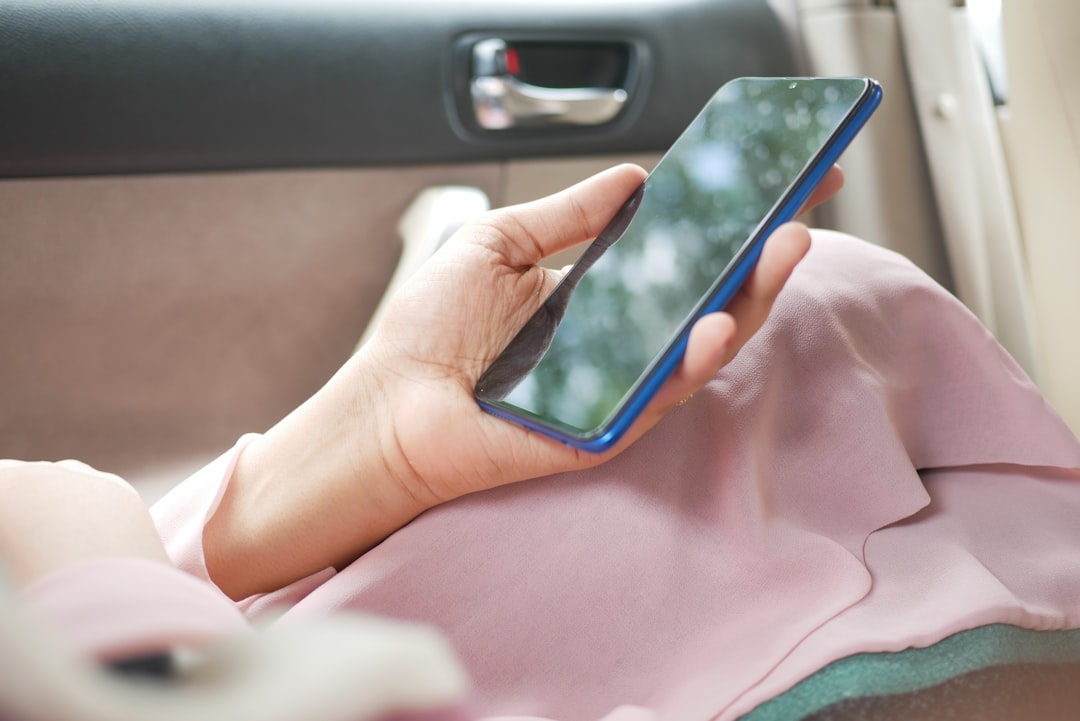
After a long, exhausting workday, getting into your car usually comes with one simple wish: to get home safely and unwind. Yet before you even pull away, the familiar chore begins: unlock your phone, fire up navigation, check traffic conditions, and text your family or partner: “Headed home, see you in about 30 minutes.”
It might not sound like a big deal at first, but going through these motions every single day quickly becomes a tedious grind. The fix turned out to be remarkably simple, budget-friendly, and clever: a tiny NFC sticker on the dashboard that handles the entire sequence in seconds with just one tap of your phone.
What Is an NFC Sticker and How Does It Work?
NFC (Near Field Communication) tags are small, adhesive stickers featuring an embedded microchip. They require no batteries or charging—drawing passive power directly from your smartphone via electromagnetic induction when tapped. You can pick up a pack online for just a few dollars, making each tag cost virtually next to nothing.
You can stick one on your dashboard, phone mount, or center console—wherever it's most convenient to tap your phone.
How to Set Up Automation on an iPhone
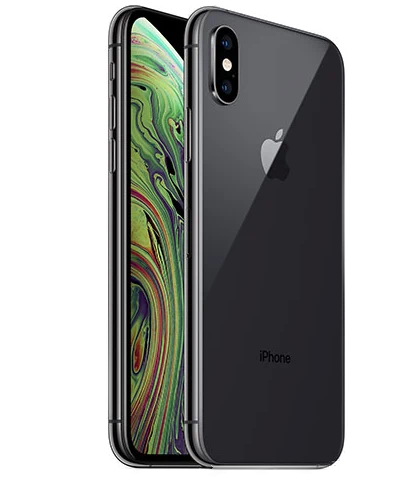
Modern iPhones (iPhone XS/XR and later) support background NFC reading, meaning you don't even need to open a separate app. Setting up this automation in Apple’s built-in Shortcuts app takes just a few steps:
- Open the Shortcuts app and go to the Automation tab.
- Tap the plus (+) icon and select NFC from the triggers list.
- Tap Scan and hold the top of your iPhone against the sticker. Give it a name (e.g., “Going Home”).
- Choose Run Immediately so it triggers seamlessly without asking for confirmation every time.
- In the Actions setup, add Get Travel Time (from Current Location to Home), followed by Send Message. Insert the travel time variable into your text and select the recipient.
As a result, the moment you tap your phone against the sticker, iOS automatically calculates your ETA based on live traffic and texts your chosen contact an accurate update.
Android users can achieve the same setup using built-in Modes and Routines (on Samsung) or popular apps like Tasker and NFC Tools.
What Else Can an In-Car NFC Tag Do?
Sending a text message is just one example. With a single tap, you can trigger virtually any combination of actions:
- Automatically enable Bluetooth and play your favorite playlist on Spotify or Apple Music.
- Launch Google Maps or Waze with directions home already loaded.
- Activate Driving Focus mode to silence distracting notifications.
- Turn on your Personal Hotspot for your car’s head unit or passengers.
Which Phones Support This Feature?
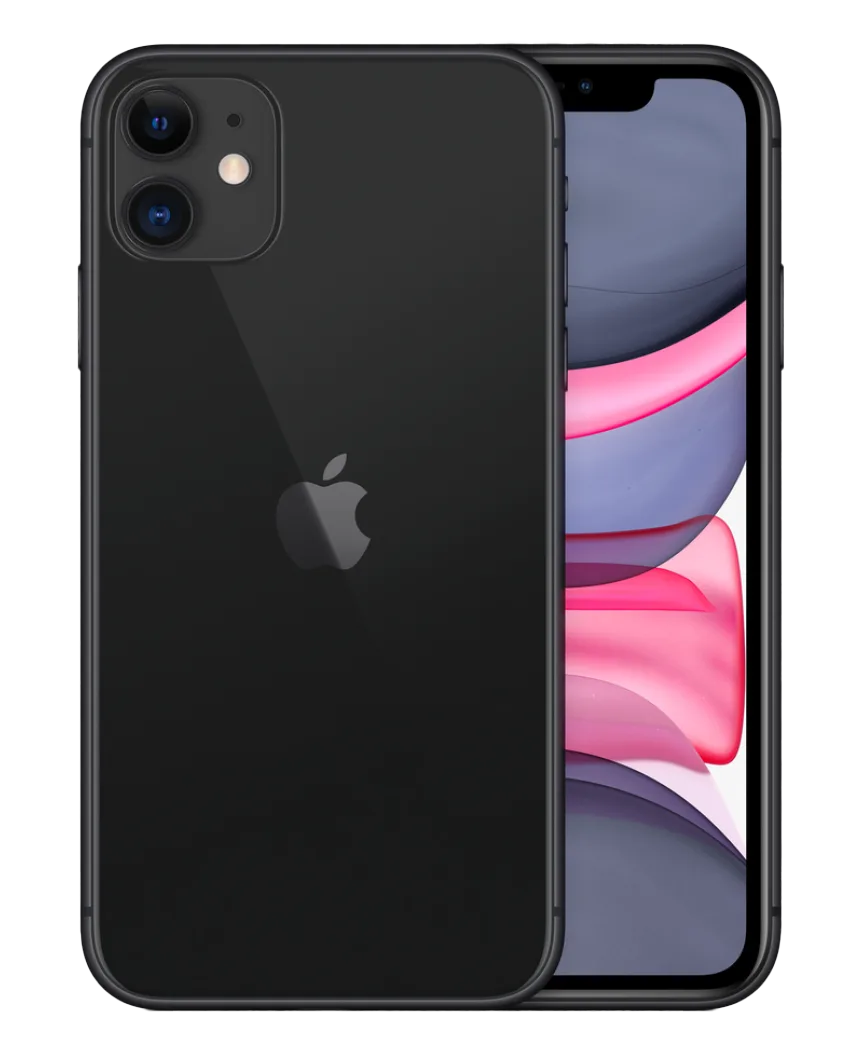
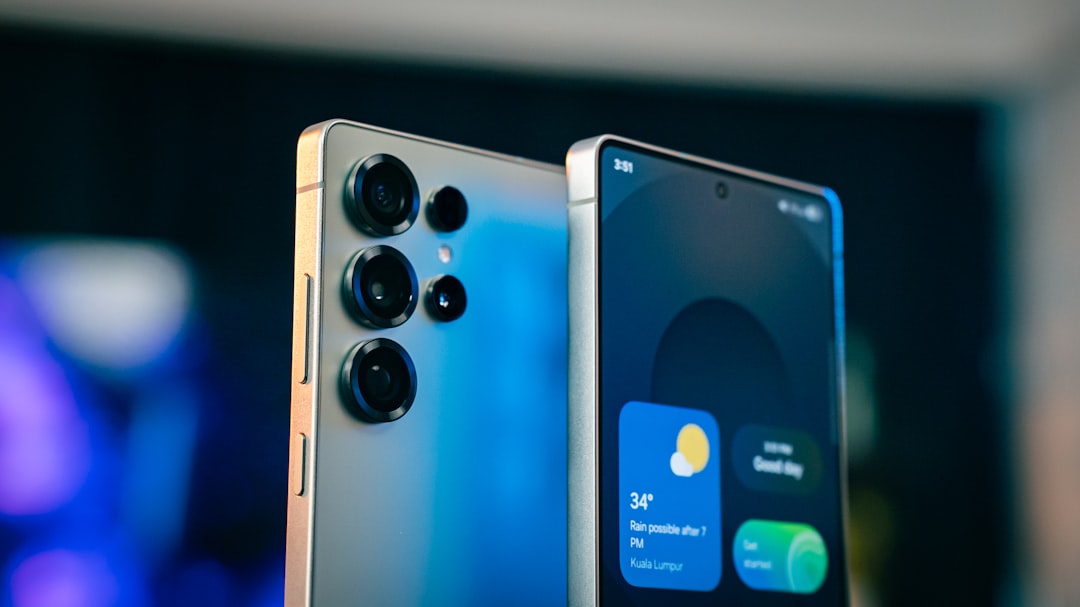
For NFC automation to run smoothly, you need a smartphone with a reliable, fast NFC module. In Apple's ecosystem, this works flawlessly on iPhone 11 and all newer models, while on the Android side, almost all modern Samsung Galaxy and Google Pixel devices support it seamlessly.
If you're looking to upgrade your old smartphone to a device packed with smart features that simplify daily life, check out usmobi.ge. At US MOBI, you'll find 100% inspected used and brand-new smartphones imported directly from the USA, backed by an official warranty and flexible installment plans.